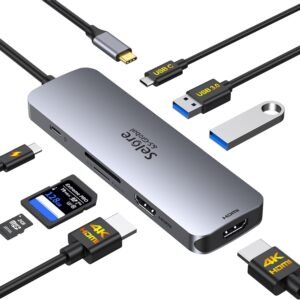
This compact 8-in-1 USB-C docking station turns one full-featured USB-C/Thunderbolt port into a clean dual-HDMI workstation (up to 4K@60Hz). I also get fast USB 3.0 expansion, SD/microSD transfers, and pass-through PD charging for laptops like Dell XPS, HP, Lenovo, Surface, and Yoga. I recommend it most for Windows systems that support DP 1.4 + MST, since that combo enables true dual extended displays. On macOS, I expect dual-monitor mirroring (SST) in most cases, so both screens usually show the same desktop.
Key takeaways
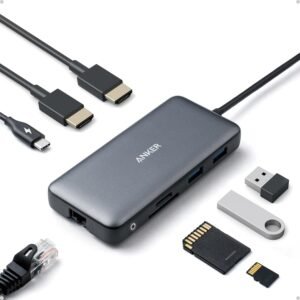
- Ports: I get an 8-in-1 portable aluminum hub with 2x HDMI, USB-C PD, USB-C 3.0, 2x USB-A 3.0, and SD/microSD card slots.
- Displays: I can run dual HDMI up to 4K@60Hz, but dual extended mode depends on Windows + MST support.
- macOS behavior: I should expect macOS to default to mirror mode in most setups (both monitors show the same image).
- Charging: I can feed up to 100W PD input (often around 85W to the laptop), but I need my own USB-C charger and cable.
- Troubleshooting: If HDMI issues pop up, I confirm my USB-C port supports video output, I remove bulky cases, and I try different HDMI cables and display inputs.

- [8 in 1 USB C Hub Dual HDMI] Transform your laptop with this latest upgrade Selore 8-in-1 dual monitor docking station with dual 4K@60Hz HDMI ports, a 100W PD charging port, a USB-C port up to 5Gbps, two USB 3.0 ports up to 5Gbps and SD/microSD card slot up to 104 Mbps. Versatile and all-in-one hdmi adapter for dual monitors,suitable for home and office use for effective work (Docking stations require a Thunderbolt or full-featured USB-C port)
- [Dual Monitors Made Easy for DP1.4 Laptop]Note for Mac Users: This adapter does not support dual-screen extension (MST) on macOS. It supports mirroring (repeated display) only! With our advanced intelligent technology, the 2 HDMI to USB C adapter provides temperature control and stable performance. Boost productivity with our usb c dual hdmi supporting MST mode under Windows Laptop for extending two monitors simultaneously
- [Speedy charging 100W] This dual hdmi adapter for 2 monitors with a USB-C power delivery port(near the SD/microSD) can charge your laptop anytime; hdmi hub for multiple monitors input 100W, output 85W. Please Note: Power charger & charging cable is not included in the package. Note:The second USB C port is only for data transfer
- [Fast Speed USB C Dock] 1xUSB C 3.0 &2xUSB A 3.0 port not only allows you quick transfer of data with a speed up to 5Gbps,but also supports to connect to peripheral devices such as mouse keyboards.USB C to SD/microSD card reader(speed up to 104Mbs) allows you to easily browse and copy photos and videos from your cameras, and quickly share your beautiful moments
- [Universal Compatibility] Note: Docking stations require a Thunderbolt or full-featured USB-C port. If the USB C port you are using only has data function or charging function, then the video function will not be available. Our plug-and-play docking station with 2 HDMI ports is compatible with a wide range of USB C or Thunderbolt 3/4 laptops,including MacBook Pro/Air(only supports mirror mode (SST)). Ideal for home and office use, maximizing productivity and efficiency
Compact 8-in-1 Port Selection
I like this hub’s 8-in-1 mix because it stays small without forcing compromises on the ports I use daily. The aluminum enclosure feels solid in a bag, and the ~0.1 kg weight keeps it travel-friendly even with a compact laptop setup.
Ports that cover real workflows
Here’s how I break down the port selection in practical terms:
- 2x HDMI: I can run dual displays up to 4K@60Hz, which keeps text sharp and motion smooth for editing or dashboards.
- USB-C PD: I feed up to 100W in and get up to 85W out, so I can charge a laptop while everything else stays connected.
- USB-C 3.0 (5Gbps): I use it for fast SSD transfers when I don’t want to give up a USB-A port.
- 2x USB-A 3.0 (5Gbps): Easy support for keyboards, mice, and portable drives.
- SD + microSD (104 Mbps): Quick imports for photo and drone cards without extra adapters.
Compact build that still feels premium
I pair it well with a travel mouse like the Logitech MX Master 4, and I keep power planning simple by referencing a power bank fine print guide when I’m away from outlets.
Check current pricing and availability at Amazon here!
USB C Docking Station Dual HDMI Monitor, USB C to Dual HDMI Adapter with 2HDMI Ports, PD Charging, SD/microSD, USB A&C 3.0 Ports, Laptop Docking Station for Dell XPS/HP/Lenovo/Surface/Yoga etc
This image is property of Amazon.com.
Best Use Case: Windows + MST for Dual Extended Displays
On a Windows laptop with a full-featured USB‑C or Thunderbolt port that supports DisplayPort 1.4 and MST, I can run two external monitors in extended mode from one dock. That setup turns a laptop into a clean home or office workstation fast, with separate screens for email, docs, and conferencing.
What I verify before I buy
I check a few items first:
- Windows support for MST (macOS won’t do dual extended over MST).
- A DP 1.4-capable USB‑C/Thunderbolt port with video output.
- My monitor inputs and cables (DP or HDMI) to match the dock.
I also pair it with a good mouse like the MX Master 4 to round out the desk. Check current pricing and availability at Amazon here!
USB C Docking Station Dual HDMI Monitor, USB C to Dual HDMI Adapter with 2HDMI Ports, PD Charging, SD/microSD, USB A&C 3.0 Ports, Laptop Docking Station for Dell XPS/HP/Lenovo/Surface/Yoga etc
This image is property of Amazon.com.
macOS Limitation: Mirror Mode Only
macOS supports only mirror mode (SST) on this adapter. I expect both external monitors to show the same image, rather than two separate extended desktops. That detail matters most for MacBook Air and MacBook Pro owners who plan on a dual-monitor workspace.
What that means in daily use
Here’s how I frame it before buying:
- Two monitors will duplicate the same screen, which works well for presentations, training, and a “big canvas” mirror setup.
- I don’t get two different external screens for separate apps, so spreadsheet-on-one and chat-on-the-other won’t happen through this adapter alone.
- For true dual extended displays on a Mac, I look at alternatives that rely on different display tech, or I run a single higher-resolution monitor instead.
- If my travel kit already includes USB-C gear, I pair this with smart accessories like a reliable mouse; I’ve had good results with picks like this ergonomic wireless mouse.
I buy this adapter for simplicity: quick plug-in, consistent mirroring, and predictable behavior on macOS. Windows users typically have fewer display restrictions, but on a Mac I keep the “mirror only” expectation.
Check current pricing and availability at Amazon here!
USB C Docking Station Dual HDMI Monitor, USB C to Dual HDMI Adapter with 2HDMI Ports, PD Charging, SD/microSD, USB A&C 3.0 Ports, Laptop Docking Station for Dell XPS/HP/Lenovo/Surface/Yoga etc
This image is property of Amazon.com.
Power Delivery Notes (What’s Included vs. Needed)
I treat charging on this dock as an add-on, not a complete kit. Power Delivery works through the dedicated USB‑C PD port, but I need to bring my own wall charger and USB‑C charging cable. I also plan my ports upfront, because the second USB‑C port handles data only, so it won’t charge a laptop or drive an external display.
What I bring to make PD work
I keep these items in my bag so I’m never stuck:
- A USB‑C PD wall charger with enough wattage for my laptop
- A quality USB‑C cable rated for charging
- If I’m upgrading my desk, a USB-C mouse to match the setup
Check current pricing and availability at Amazon here!
USB C Docking Station Dual HDMI Monitor, USB C to Dual HDMI Adapter with 2HDMI Ports, PD Charging, SD/microSD, USB A&C 3.0 Ports, Laptop Docking Station for Dell XPS/HP/Lenovo/Surface/Yoga etc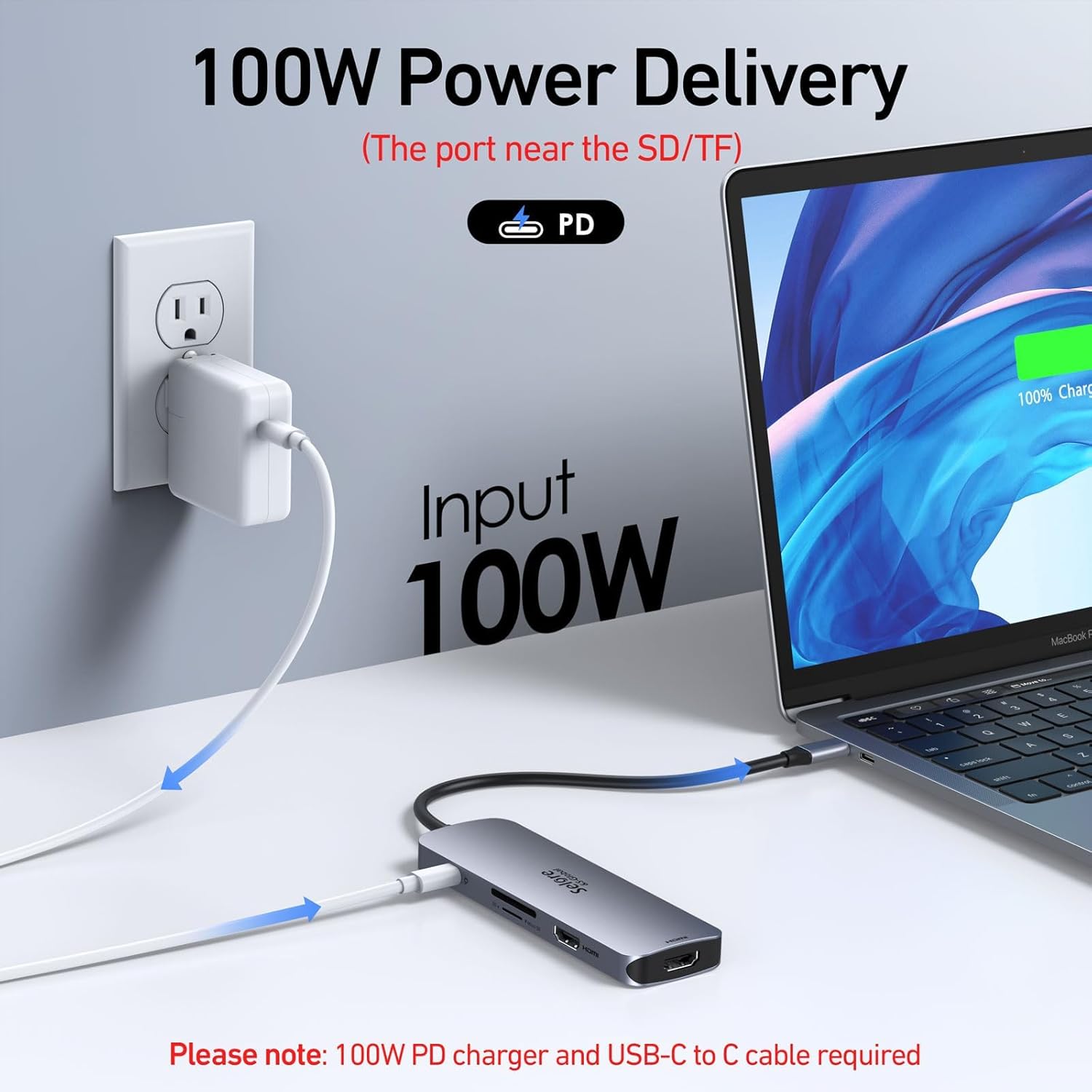
This image is property of Amazon.com.
Connection Stability & Compatibility Considerations
I’ve seen mixed real-world results with HDMI stability. Many users praise the build, portability, and value, yet some report an HDMI port that won’t light up, brief dropouts, or a connector that feels loose on certain MacBooks—especially with a case in the way. I treat fit as part of setup, not an afterthought.
What I check before blaming the dock
I start with a few quick checks to avoid false alarms:
- Confirm the laptop’s USB‑C supports video output (Thunderbolt or full-featured USB‑C). Charge/data-only ports won’t drive HDMI.
- Remove thick cases or skins that stop a snug plug-in.
- Try a different HDMI cable and display input.
- Reseat the connector and avoid side tension from stiff cables.
Check current pricing and availability at Amazon here!
USB C Docking Station Dual HDMI Monitor, USB C to Dual HDMI Adapter with 2HDMI Ports, PD Charging, SD/microSD, USB A&C 3.0 Ports, Laptop Docking Station for Dell XPS/HP/Lenovo/Surface/Yoga etc
This image is property of Amazon.com.
Disclosure: As an Amazon Associate, I earn from qualifying purchases.

From San Jose, California. Former IT support lead who has seen unspeakable things plugged into USB ports. Reviews electronics with zero patience for bad firmware.